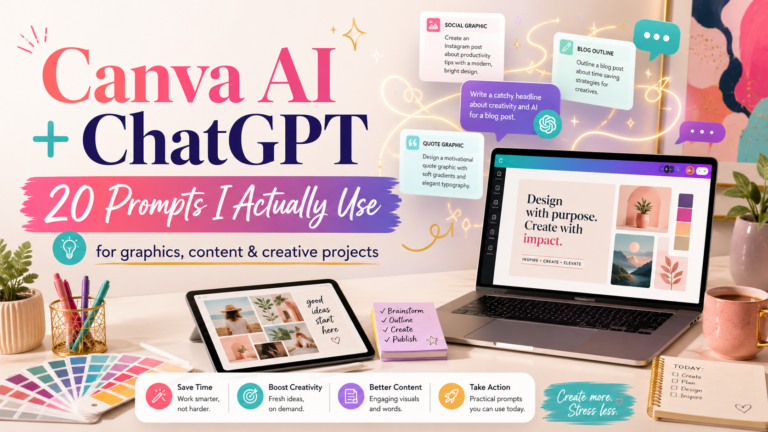
How to Use ChatGPT With Canva: From Rough Idea to Finished Graphic
Opening Canva is easy.
Knowing what to put on the blank page is often the harder part.
You may know you need a Pinterest Pin, product graphic, flyer, Instagram post, event invitation, infographic, or presentation. What you may not know yet is the headline, the visual hierarchy, the colors, the image direction, how much text belongs on the page, or what should receive the most attention.
That is where ChatGPT can become useful before you ever start designing.
I think of the two tools as performing different jobs.
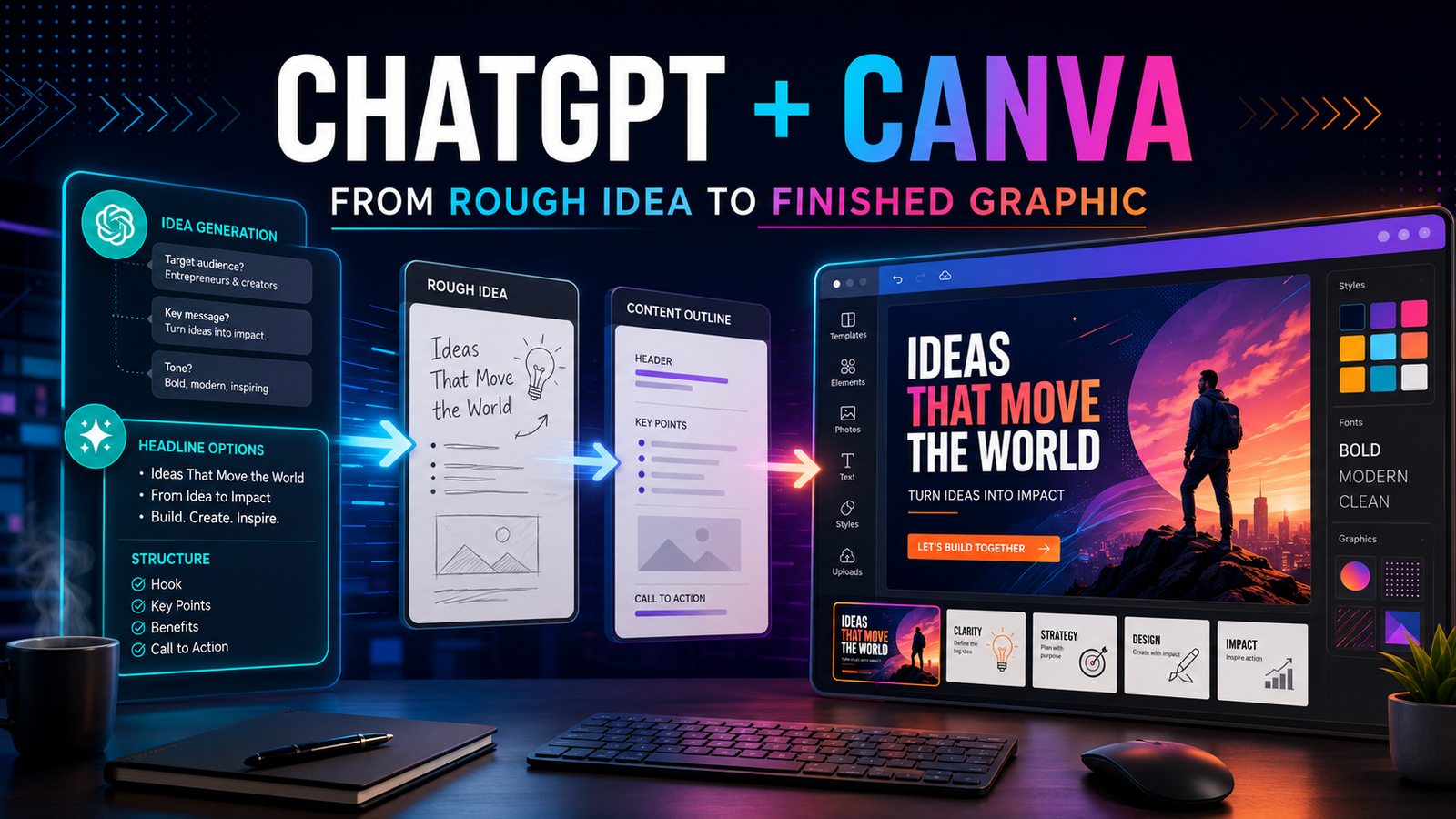
ChatGPT helps me develop the direction. Canva helps me execute the visual.
That sounds simple, but understanding the handoff between the two can save a surprising amount of time.
Instead of opening Canva and experimenting randomly with templates, colors, fonts, and images, I can arrive with a much clearer creative brief.
The finished design is still mine to judge. AI does not decide whether something is attractive, appropriate, accurate, or effective simply because it generated it.
But it can help eliminate a lot of the blank-page work that comes before those decisions.
The Difference Between a Content Prompt and a Design Prompt
One of the easiest ways to understand this workflow is to separate what you need ChatGPT to solve from what you need Canva to solve.
ChatGPT is useful when the problem involves words, organization, hierarchy, messaging, or creative direction.
Canva becomes useful when that direction needs to become visual.
Here is what that looks like in practice:
| What You Ask ChatGPT to Help With | What You Ask Canva to Create |
|---|---|
| Write a short product description for a luxury watch collection. | Create an elegant luxury product ad using black, gold, dramatic lighting, and refined typography. |
| Write a concise introduction about AI tools for small businesses. | Design a modern business graphic using blue, silver, white, and simple technology-inspired visuals. |
| Write a motivational quote for a fitness coach’s social post. | Create a bold fitness graphic using strong typography, energetic imagery, and high-contrast colors. |
| Write copy for a destination wedding invitation. | Design an elegant invitation using destination-inspired colors, florals, and refined serif typography. |
| Turn classroom notes into five easy-to-understand points. | Create an infographic with five sections, simple icons, and a clear visual hierarchy. |
| Write a short caption for a home organization transformation. | Design a clean before-and-after layout that makes the transformation immediately visible. |
| Create a weekend itinerary for New York City. | Build a visual itinerary with time blocks, location icons, and an energetic city-inspired palette. |
| Organize family activities into a weekly schedule. | Create a color-coded family calendar for school, work, appointments, and sports. |
| Write a short explanation of why hydration matters. | Create a clean wellness infographic with water imagery, simple icons, and easy-to-scan information. |
| Turn a DIY project into six clear steps. | Build a numbered visual guide with one image or illustration for each step. |
The value of the chart is not the individual examples.
It is the pattern.
ChatGPT helps determine what the graphic needs to communicate. Canva helps determine how that communication looks.
Once you understand that distinction, you can apply the workflow to almost anything.
Step 1: Start With the Job, Not the Tool
A common mistake with AI is opening the application first and then trying to invent something for it to do.
I prefer to start with the job.
For example:
“I need a Pinterest Pin that introduces an article about creating a peaceful bedroom.”
That already tells me considerably more than:
“Make a Pinterest Pin.”
Now ChatGPT can help develop the actual creative direction.
I might ask:
“Give me five headline options for a Pinterest Pin introducing an article about turning a bedroom into a peaceful place to rest. The audience is women over 40. Avoid generic phrases like ‘create your dream bedroom.’ Make the headlines useful, emotional, and curiosity-driven.”
Now I have choices.
Once I select the strongest headline, I can move to the visual.
Step 2: Ask ChatGPT to Build the Creative Brief
This is where the process becomes much more useful.
Instead of asking ChatGPT only for words, I can ask it to help define what the design should communicate visually.
For example:
“Create a visual brief for this Pinterest Pin. I want a bright, sophisticated bedroom with natural light. The image should feel peaceful and attainable rather than luxurious or staged. Tell me where the headline should appear, what part of the room should be visible, what colors should dominate, and which details would visually communicate rest.”
Now I am no longer walking into Canva with only a headline.
I have:
- a subject
- an audience
- a visual mood
- a composition
- a color direction
- a text hierarchy
- a reason for each element
That dramatically reduces random experimentation.
Step 3: Move the Visual Instructions Into Canva
Canva is where those decisions become something tangible.
Depending on the project, that may mean selecting a template, using Canva’s AI tools, generating imagery, working with existing photography, adjusting typography, building an infographic, or creating the layout manually.
The important part is that I am no longer asking Canva to solve every creative problem simultaneously.
I have already made some of the decisions.
For example:
ChatGPT direction:
Use a bright Mediterranean-style bedroom, warm white bedding, natural morning light, one plant, minimal clutter, and room on the left for a six-word headline.
Canva execution:
Choose or generate the room image, place the text, adjust the typography, crop the photograph correctly, apply the brand treatment, and produce the final graphic.
The tools complement each other because they are solving different pieces of the job.
Step 4: Let the Format Determine the Instructions
The same idea should not be designed identically for every platform.
A Pinterest Pin, Instagram graphic, Facebook image, blog featured image, presentation slide, and printable guide each have different jobs.
That means the design prompt should change too.
The graphic has to communicate very quickly.
Ask ChatGPT to help with:
- short headline options
- curiosity-driven hooks
- text hierarchy
- vertical composition
- visual concepts that remain clear on a phone
Then use Canva to build the vertical asset.
Blog Featured Image
The goal is different.
A featured image supports an article rather than carrying the entire message.
Ask ChatGPT for:
- a concise overlay
- editorial image direction
- 16:9 composition
- visual symbolism connected to the article
- room for readable headline text
Then let Canva handle the layout and branding.
Infographic
Here, organization becomes more important than mood.
Ask ChatGPT to:
- reduce the information
- group related concepts
- identify the most important numbers or steps
- recommend a visual order
- suggest icons or diagrams
Then build the hierarchy inside Canva.
Event Graphic
An event graphic has another priority entirely.
The viewer needs to identify the important details immediately:
- what
- when
- where
- who
- what to do next
ChatGPT can help prioritize the information. Canva makes that hierarchy visible.
The Two-Prompt Method
One practical way to use the workflow is to create two prompts for every project.
The first prompt is for the message.
The second is for the visual.
For example:
Prompt 1 — ChatGPT
“Write five concise headline options for a social graphic promoting a local furniture company’s same-week bedroom delivery. The audience is families who need furniture quickly. Emphasize convenience without sounding cheap or desperate.”
Then choose the strongest option.
Prompt 2 — Canva Direction
“Create a bright, polished promotional graphic showing a fully furnished bedroom. Use the headline ‘A Bedroom You Don’t Have to Wait Weeks For.’ Make the bed the visual focal point, use clean professional typography, leave room for delivery information, and make the overall design feel trustworthy and established.”
The first prompt determines the message.
The second determines how that message should look.
That separation is surprisingly useful.
ChatGPT Can Also Help Fix a Canva Design That Isn’t Working
The workflow does not have to move in only one direction.
Sometimes I already have a Canva design and something feels wrong.
Instead of continuing to randomly move things around, I can describe or show the design to ChatGPT and ask:
- Is there too much text?
- What should be the focal point?
- Which information can be removed?
- Is the headline too long?
- Does the color palette match the subject?
- What should the reader notice first?
- Is this appropriate for Pinterest or does it read more like a flyer?
- How could the composition feel less crowded?
That is another useful role for AI.
It can act as an editorial second set of eyes before I finalize the visual.
One Idea Can Produce Several Completely Different Designs
Another advantage of separating the thinking from the execution is that one subject can support several visual approaches.
Take an article about organization.
Instead of making five nearly identical Pins, I can ask ChatGPT:
“Give me five fundamentally different visual concepts for a Pinterest Pin about home organization. One should emphasize transformation, one emotional relief, one practical instruction, one common mistake, and one unexpected benefit.”
Now the resulting Canva designs may look completely different even though they all lead to the same article.
That is much more useful than changing the background color and calling it a new Pin.
The Human Still Makes the Final Decision
This is the part of AI-assisted design that should not disappear.
Neither ChatGPT nor Canva knows your audience the way you eventually will.
They do not automatically know whether a headline sounds like you.
They do not know whether a visual feels too generic for your brand.
They do not know whether a particular image will make your customer stop scrolling.
They can offer options.
They can accelerate execution.
They can remove the blank page.
But someone still has to make the decision.
That someone is you.
A Simple Workflow to Remember
When I combine ChatGPT and Canva, I think about the process in four stages:
- Define the purpose. What am I creating, for whom, and why?
- Develop the direction. Use ChatGPT to shape the headline, message, visual concept, hierarchy, and tone.
- Create the asset. Use Canva to turn that direction into the actual visual.
- Edit with judgment. Remove what does not belong, strengthen what does, and make sure the result actually fits the audience and platform.
That is considerably different from asking AI to “make something.”
It is directing the tools toward a finished objective.
The Real Benefit Is Not Automation. It Is Clarity.
There is plenty of conversation around AI replacing work.
For this particular workflow, that is not what interests me most.
The bigger advantage is clarity.
ChatGPT helps me put words around what I can sometimes already see vaguely in my head.
Canva gives me the environment to turn that direction into something visual.
Neither tool is responsible for the finished idea.
They help shorten the distance between the idea and its execution.
And sometimes that is exactly what a creator needs.
Not another magic prompt.
Not another promise that AI will build an entire business overnight.
Just a faster way to move from:
“I know what I want to say, but I don’t know what this should look like.”
to:
“Now I know what to build.”